Reports
The Reports module is the final layer of the dashboard application, designed for detailed data extraction and scheduled information delivery. While Indicators and Scorecards provide visual summaries, Reports are used to generate granular, tabular datasets for in-depth offline analysis.
Reports List
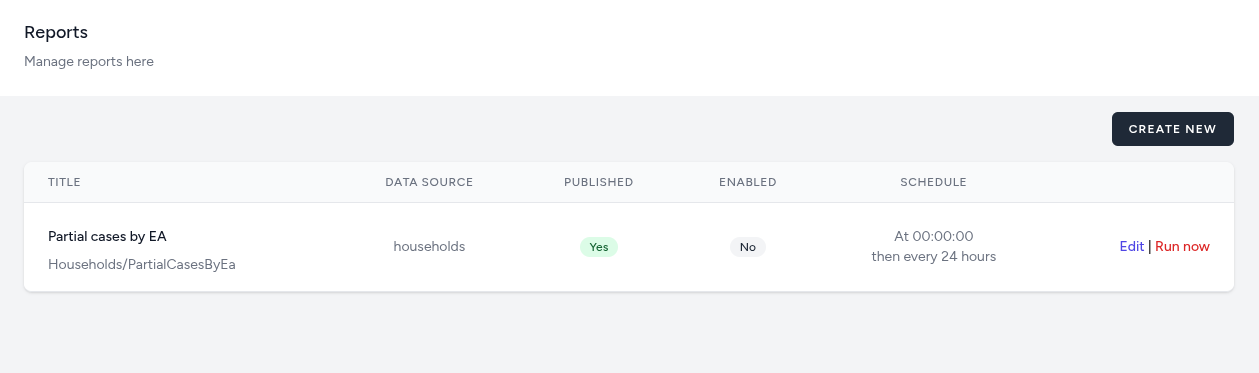
The Reports management screen provides a centralized list of all structured data exports available in the system.
-
Title & System Path: Displays the reader-friendly name (e.g., Partial cases by EA) and its underlying component location within the application (e.g., Households/PartialCasesByEa).
-
Data Source: Identifies which specific database connection the report is querying (e.g., households).
-
Status Indicators:
-
Published: Confirms if the report is visible to authorized users on the main dashboard.
-
Enabled: A toggle showing if the automated generation of this report is currently active.
-
-
Schedule: Displays the frequency at which the report is automatically refreshed/generated (e.g., At 00:00:00 then every 24 hours).
-
Operational Actions
-
Create New: Initiates the setup of a new reporting component.
-
Edit: Allows for the modification of report titles, and scheduling parameters.
-
Run Now: A manual override that triggers an immediate refresh of the report data outside of its normal schedule.
-
Editing Reports
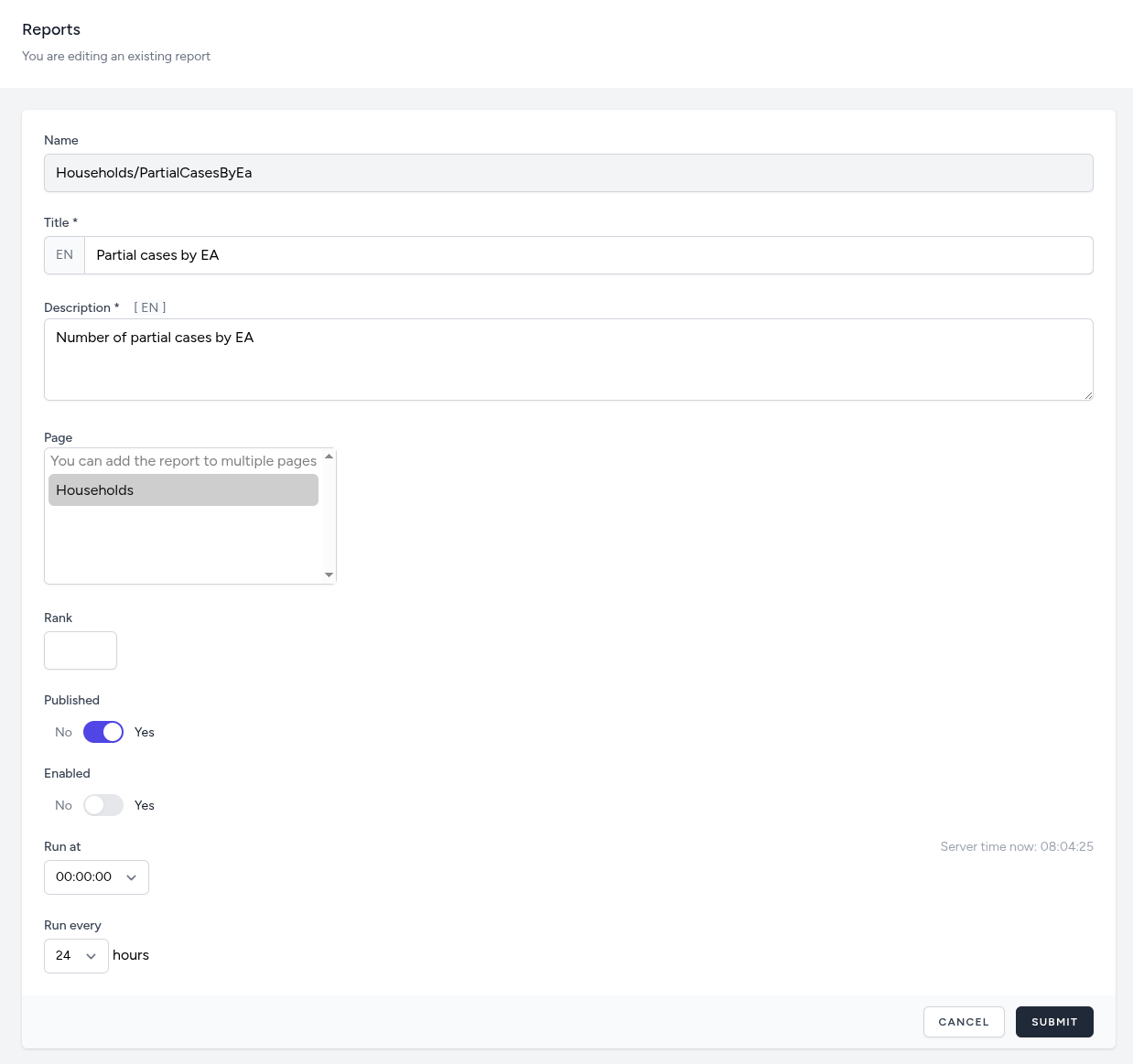
The Edit Report interface allows administrators to refine the metadata, distribution, and automated schedule for established reporting components. This ensures that the generated tabular data remains accurate and is delivered to the correct stakeholders at the appropriate intervals.
Identity and Context
-
Name: The internal system identifier for the report component (e.g., Households/PartialCasesByEa).
-
Title: The public-facing label that appears in the dashboard and on exported files (e.g., Partial cases by EA).
-
Description: A multi-language text field used to define the specific purpose of the report, such as "Number of partial cases by EA," to assist users in selecting the correct dataset.
Placement and Visibility
-
Page Assignment: A multi-select menu allows administrators to link a single report to multiple dashboard pages (e.g., the Households page).
-
Rank: A numerical field used to determine the report's display order when listed alongside other reporting artifacts.
-
Published Status: A toggle switch to enable or disable the report's visibility to end-users on the live dashboard.
Automation and Scheduling
-
Enabled Toggle: Activates or deactivates the automated generation process.
-
Run At: Specifies the exact time of day (based on server time) when the generation process should initiate (e.g., 00:00:00).
-
Run Every: Defines the frequency of the report refresh cycle in hours (e.g., every 24 hours).